How to Add a Set File
to an EA in MT4
Set files store all the parameter settings for your Expert Advisor. Loading the right set file is the difference between running an EA with tested, optimised settings and running it with default values that were never tested on your pair.
What Is a Set File?
A set file (also called a preset file) is a .set file that stores all the input parameters for an Expert Advisor — lot size, stop loss distance, indicator periods, filter thresholds, and every other configurable value. When you buy an EA, the developer includes set files that have been tested and optimised for specific pairs and timeframes. Loading the set file means you're running the EA exactly as it was tested — not with factory defaults.
Watch: Video Tutorial
Prefer to follow along visually? This walkthrough covers the exact steps below — finding the presets folder, loading the set file, and confirming the EA is running with the correct settings.
.set file you received into the MT4 presets folder. The exact path depends on your MT4 installation, but it's always inside the MQL4\presets directory:
MQL4 → presets. Paste your .set file there.
MQL4\presets folder.
.set file you copied in Step 1, select it, and click Open. All the parameter values will instantly update to the optimised settings from the file.
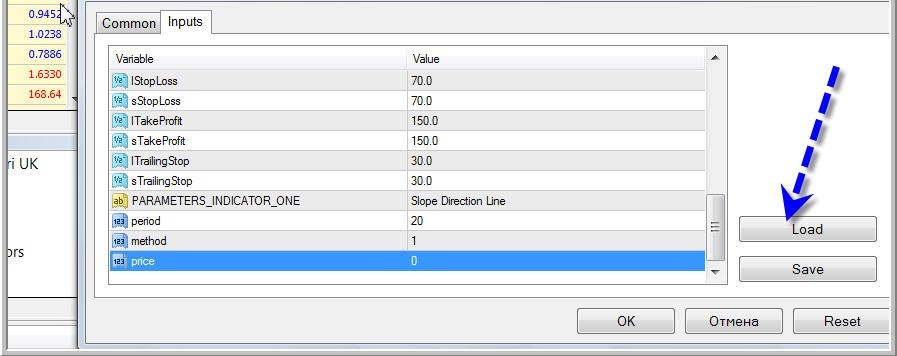
MQL4\presets, not MQL4\Experts or your Desktop. If you don't see the file when you click Load, check the folder path again.Using Set Files in the Strategy Tester
Set files work the same way in backtesting. In the Strategy Tester, after selecting your EA and pair/timeframe, click the Expert properties button → Inputs tab → Load. Select your set file and run the test. This ensures your backtest uses the same parameters as your live trading setup.
Saving Your Own Set Files
If you've customised the parameters and want to save them, use the Save button in the same Inputs tab. Give the file a descriptive name (e.g. EURUSD_H1_v2.set) and save it to the presets folder. You can build a library of configurations for different pairs, timeframes, or risk levels.
For MT5 the process is identical — the only difference is the folder path changes to MQL5\presets. cTrader uses a different system: you import set files directly through the cBot's parameter panel, not via a presets folder.
File → Open Data Folder → MQL4 → presets. Load it → EA dialog → Inputs tab → Load button.Need set files for your EA?
Every EA sold here includes tested, optimised set files for each supported pair and timeframe — plus direct Telegram support if you need help loading them.